Client portal help
support@verixity.comYour client portal in 10 short videos and a user guide
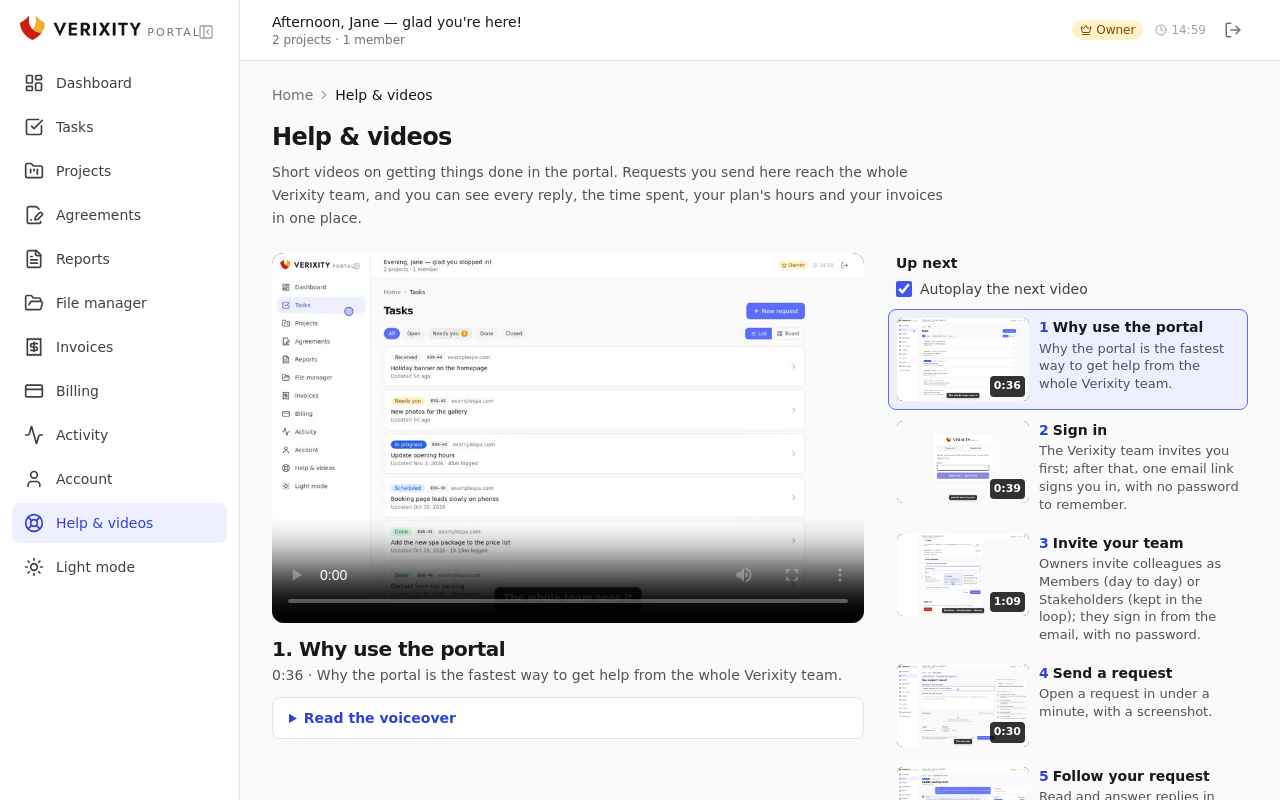
1. Why use the portal
0:36 · Why the portal is the fastest way to get help from the whole Verixity team.
Read the voiceover
Need something done on your website? You can send an email to support@verixity.com, or create a ticket right here in your Verixity client portal. Either way, your request goes to the whole Verixity team instead of one person's inbox, so someone picks it up right away. In the portal you can follow every reply, see where things stand, and how much time we've spent on it, so nothing gets lost. It's the fastest way to reach us. Your plan, the hours you've used and your invoices are all here in one place too. The next short videos show you how it all works, and each one takes less than a minute.
1.Signing in
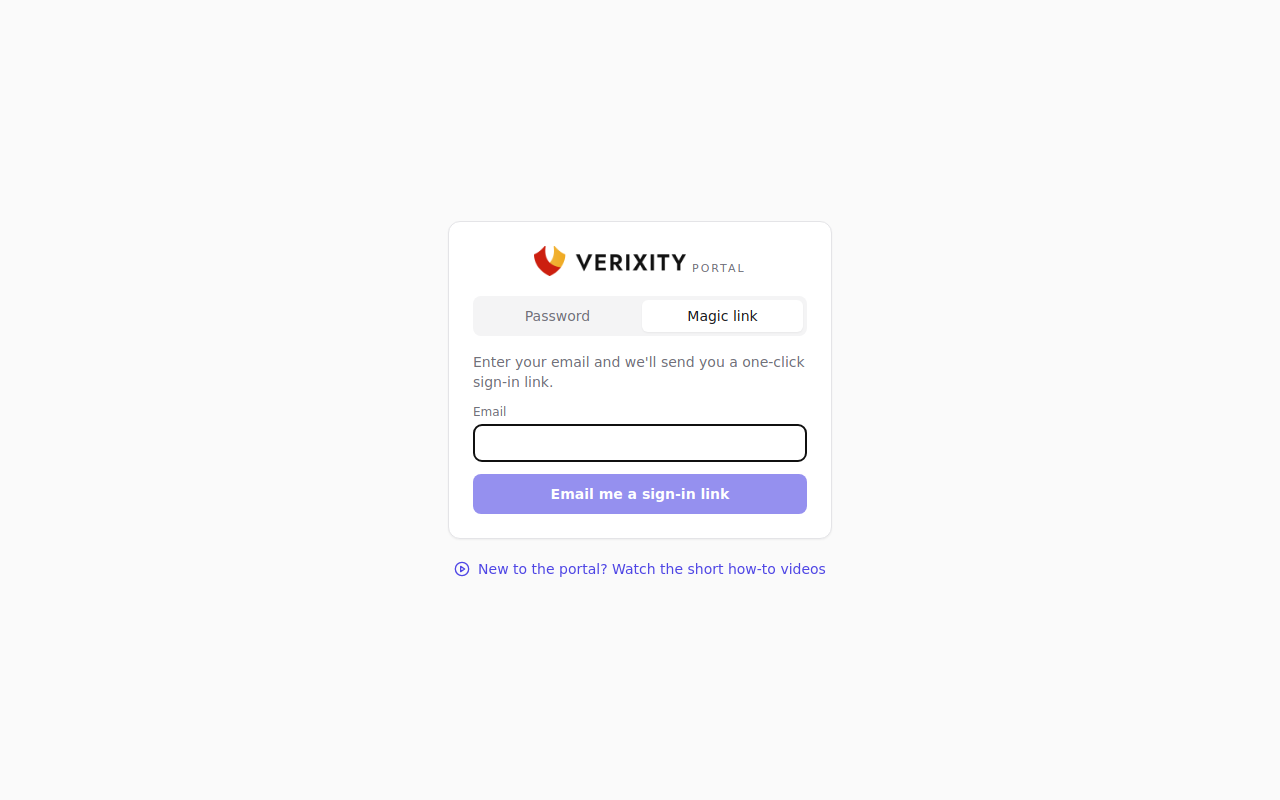
Sign in with a one-time link sent to your email, or with a password if you set one.
Verixity (or your account owner) invites you first, so you get an email to start with. After that you sign in with a link we email you. No password needed.
- Go to the portal's sign-in page. The Magic link tab is selected.
- Enter your email and click Email me a sign-in link.
- Open the email and click the link. It works once and is valid for 30 minutes.
Prefer a password? Set one under Account → Password. Then you can use the Password tab on the sign-in page too. If you forget it, click Forgot password?, or just use a sign-in link instead.
Link didn't arrive? Check your spam folder, then request a new one. Only the newest link matters.
2.Your dashboard
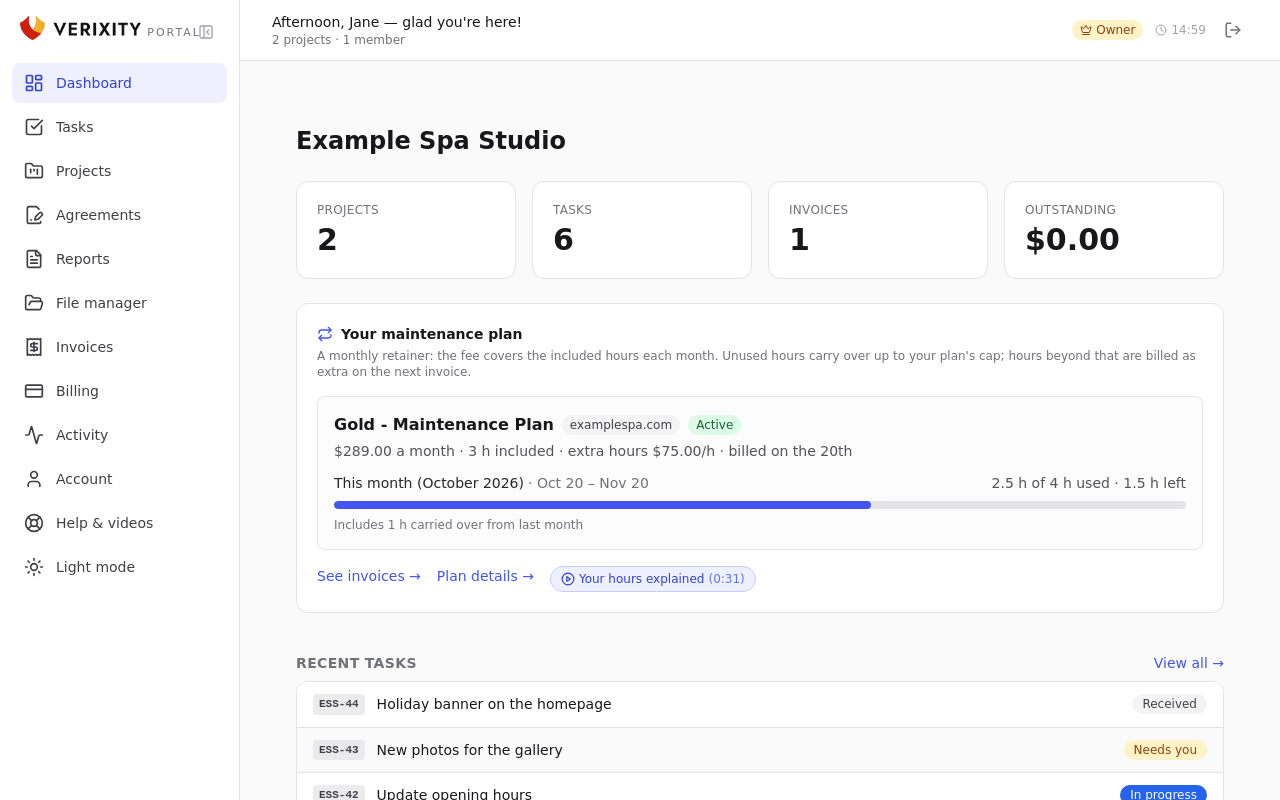
The first page after you sign in: your projects, requests, plan hours and open invoices at a glance.
Dashboard is your home page. At the top you see how many Projects and Tasks you have. Account owners also see Invoices and what is Outstanding.
Below that, owners see Your maintenance plan with this month's hours. Recent tasks lists your latest requests with their status. Click any row to open it, or View all → to see every request. Any unpaid invoices show under Open invoices.
When it's time to choose next year's plan, a banner with Choose my … plans appears here. See "Your plan and hours".
3.Requests
Send a request to the Verixity team, follow its status, reply, and mark it resolved.
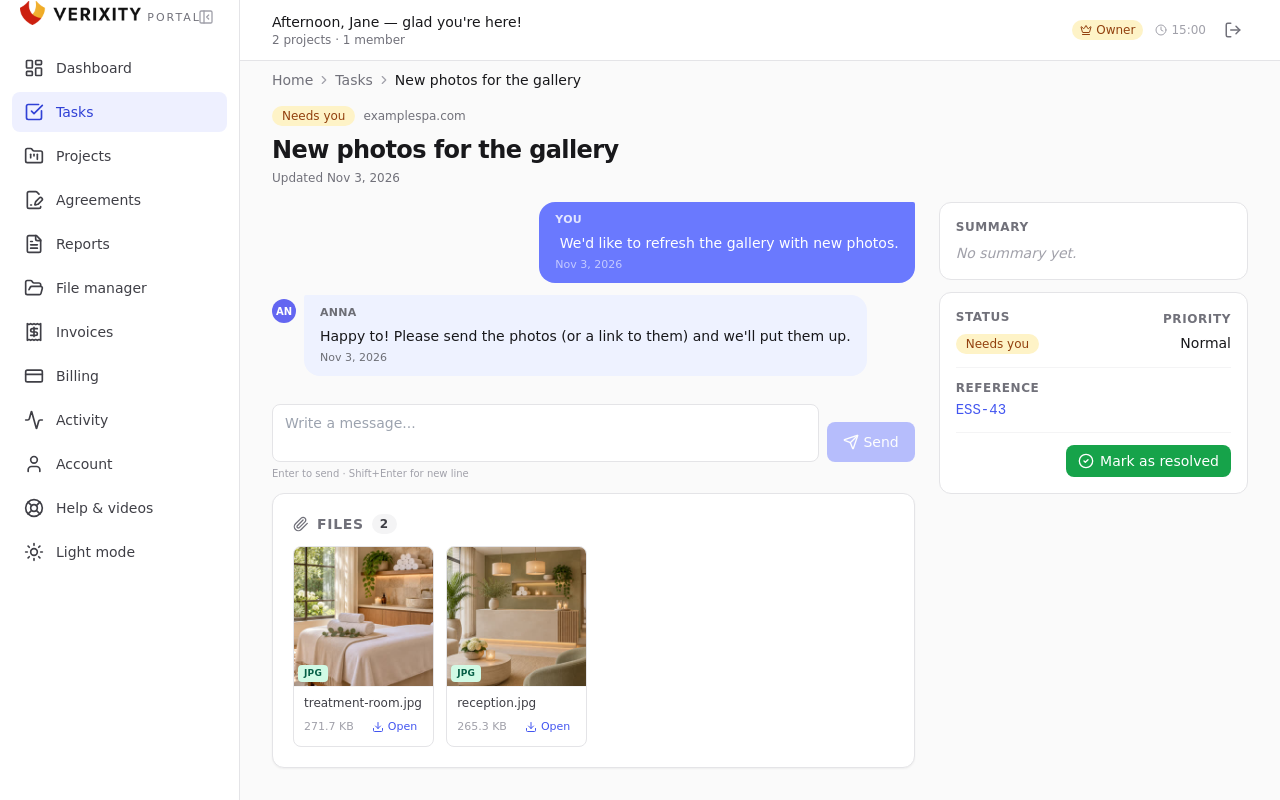
Anything you need, from a fix to a new page, starts as a request. The whole team sees it, and you can follow every reply in Tasks.
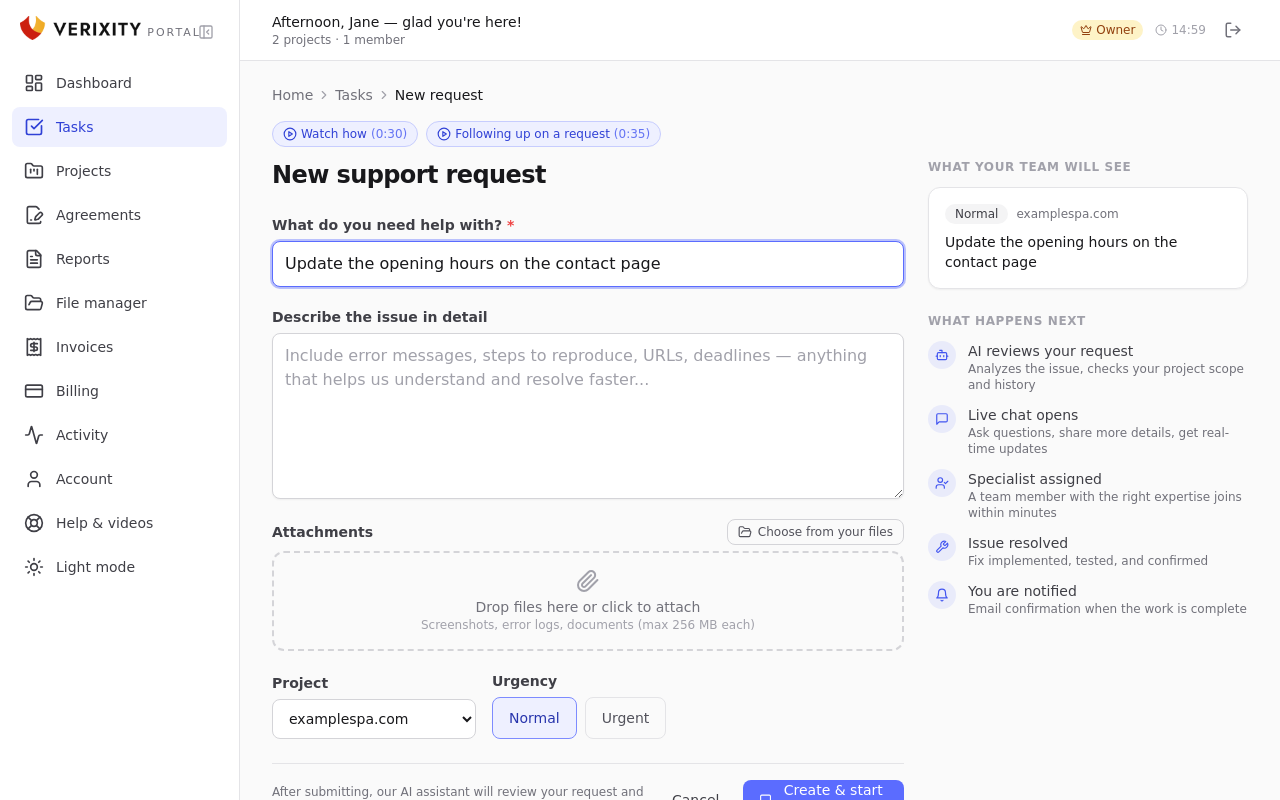
- Go to Tasks and click New request.
- Fill in What do you need help with? and Describe the issue in detail.
- Add files under Attachments: drop them in the box, or click Choose from your files.
- Pick the Project (if you have more than one) and the Urgency: Normal or Urgent.
- Click Create & start chat.
Each request shows a status: Received, Scheduled, In progress, Needs you (we're waiting for your answer), Needs your approval, Done or Closed. Use the filters All, Open, Needs you, Done and Closed, or switch to the board view.
To reply, open the request, type in the message box and click Send. Our emails have a button that opens the request, so reply there rather than answering the email. When the work is finished, click Mark as resolved. Need more? Click Reopen.
Attach files when you create the request. The chat takes text only. If something is missing later, describe it in a reply or start a new request.
4.Projects
See each of your websites or apps, its requests, files and scope of work.
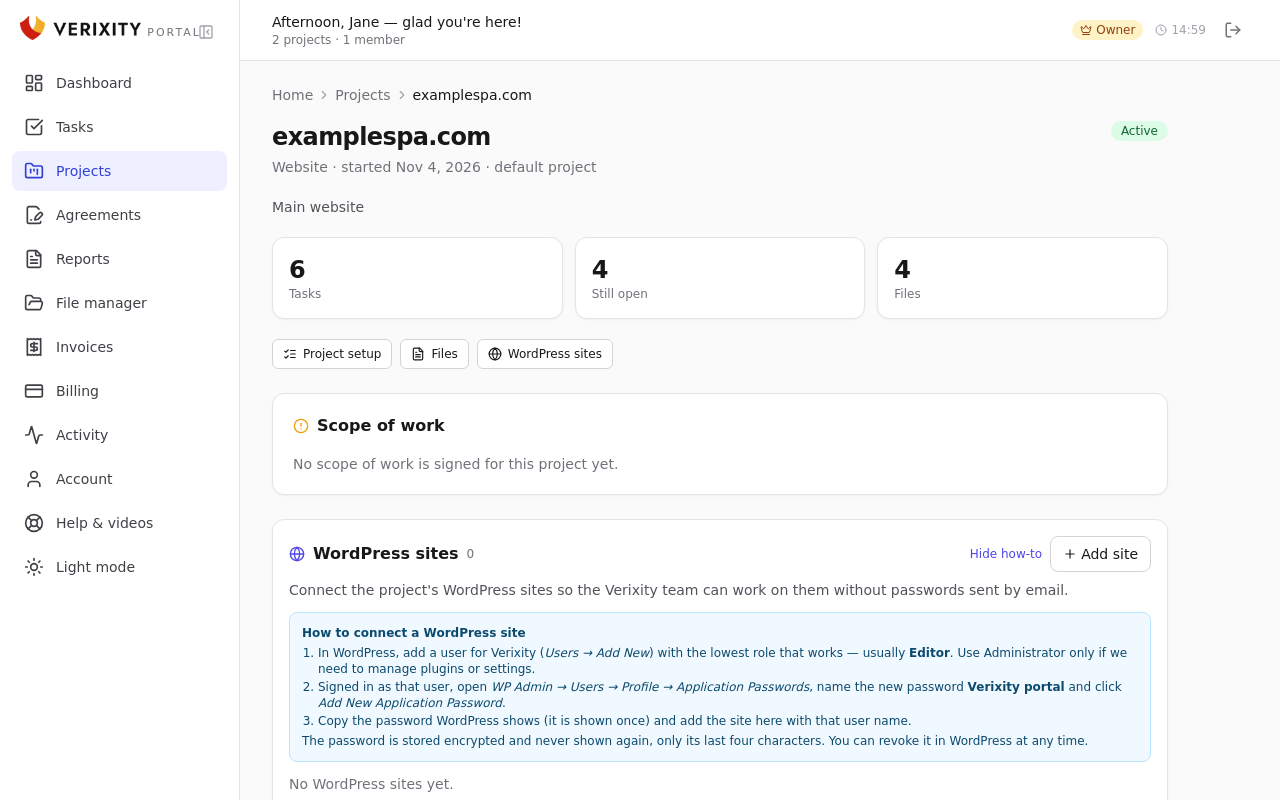
Each website or app we look after for you is a project. Projects lists them all. Click one to see how many Tasks it has, how many are Still open, and its Files.
The project page also shows the Scope of work you agreed with us. Project setup lists the access details and information the team needs to start. Fill in what you can, and secret values are stored encrypted. Under WordPress sites you can connect a WordPress site so the team doesn't need passwords sent by email. Click How to connect for the steps.
When you send a request, choose the right project so it reaches the right place.
5.Files
Upload, organise and share files with the team in the File manager, and attach them to requests.
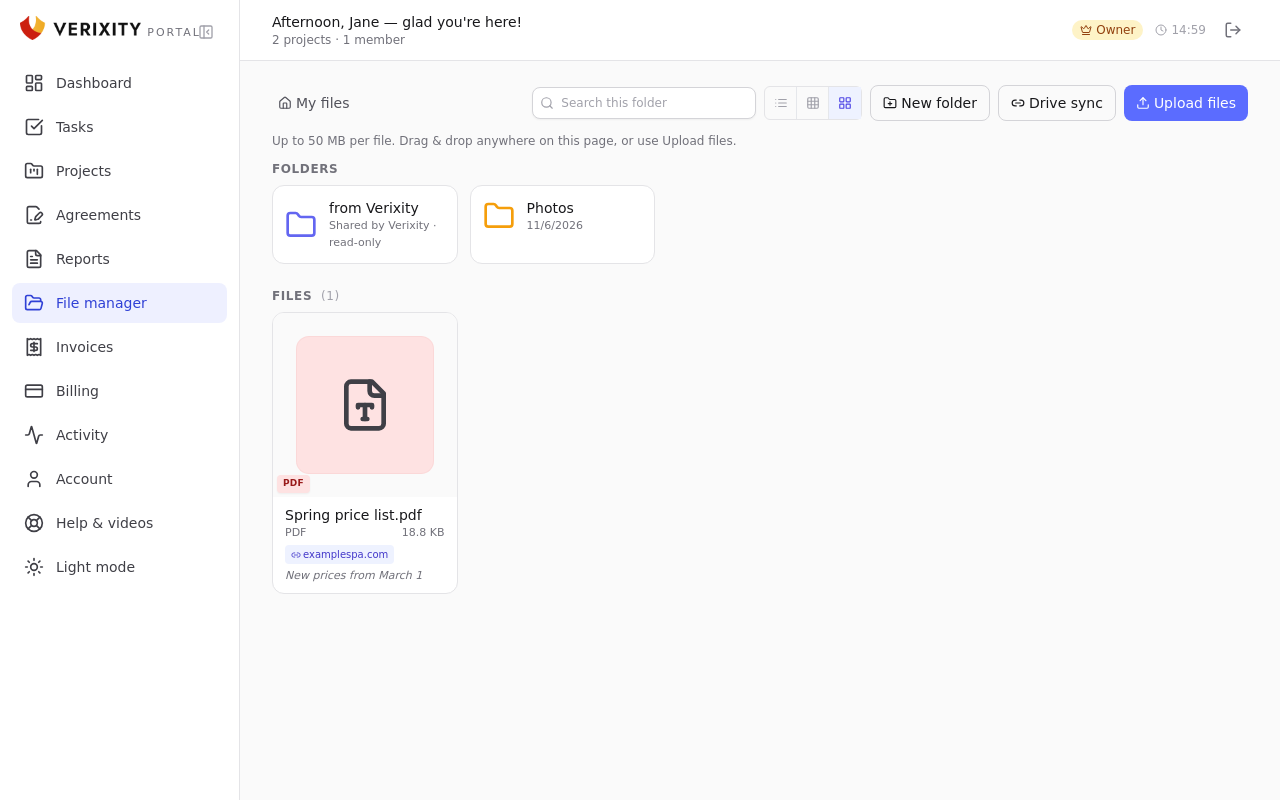
File manager keeps your files in one place for you and the team. It opens in My files.
- Click Upload files, or drag and drop files anywhere on the page. Each file can be up to 50 MB.
- Click New folder to group files, and open a folder to upload into it.
- Use Drive sync to bring in files from a public Google Drive link.
- Type in Search this folder to find a file. You can switch between a list and small or large tiles.
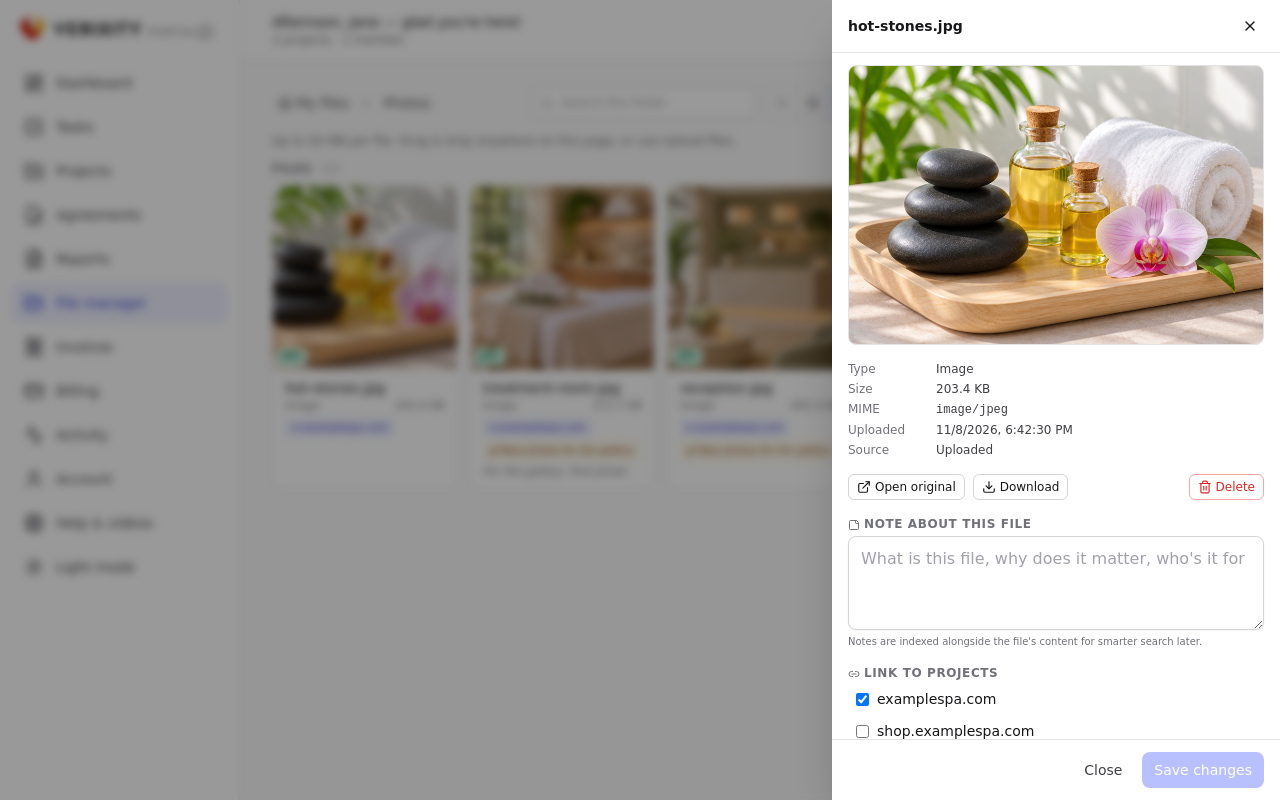
Click a file to open its details. You can preview it, Open original, Download or Delete it, add a Note about this file, Link to projects, and see where it is Attached to tasks. Click Save changes when you're done. Files can't be moved between folders.
Files Verixity shares with you, such as invoice copies, are in the from Verixity folder. You can view and download them, but not change them. Stakeholders can view files only.
To send files with a request, attach them in the request form. They then show in the request's Files card.
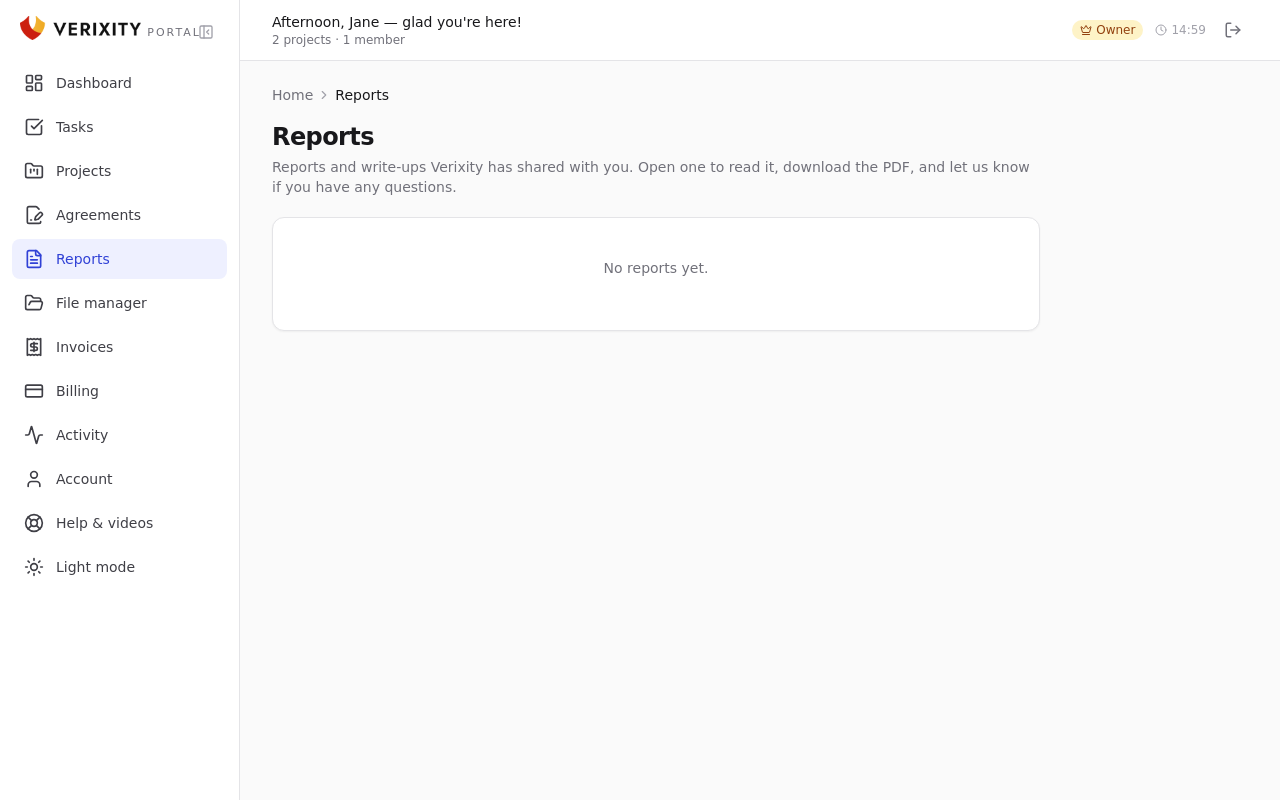
6.Reports
Read reports Verixity shares with you, download the PDF, and ask questions.
Reports holds the reports and write-ups we share with you, such as a site audit. A new one is marked Awaiting your review.
- Go to Reports and click a report to read it.
- Click Download PDF to keep a copy, when one is attached.
- Click Ask a question about report to ask us anything about it.
- When you're happy, click I've reviewed it — no questions. The report is then marked Reviewed.
7.AgreementsAccount owners
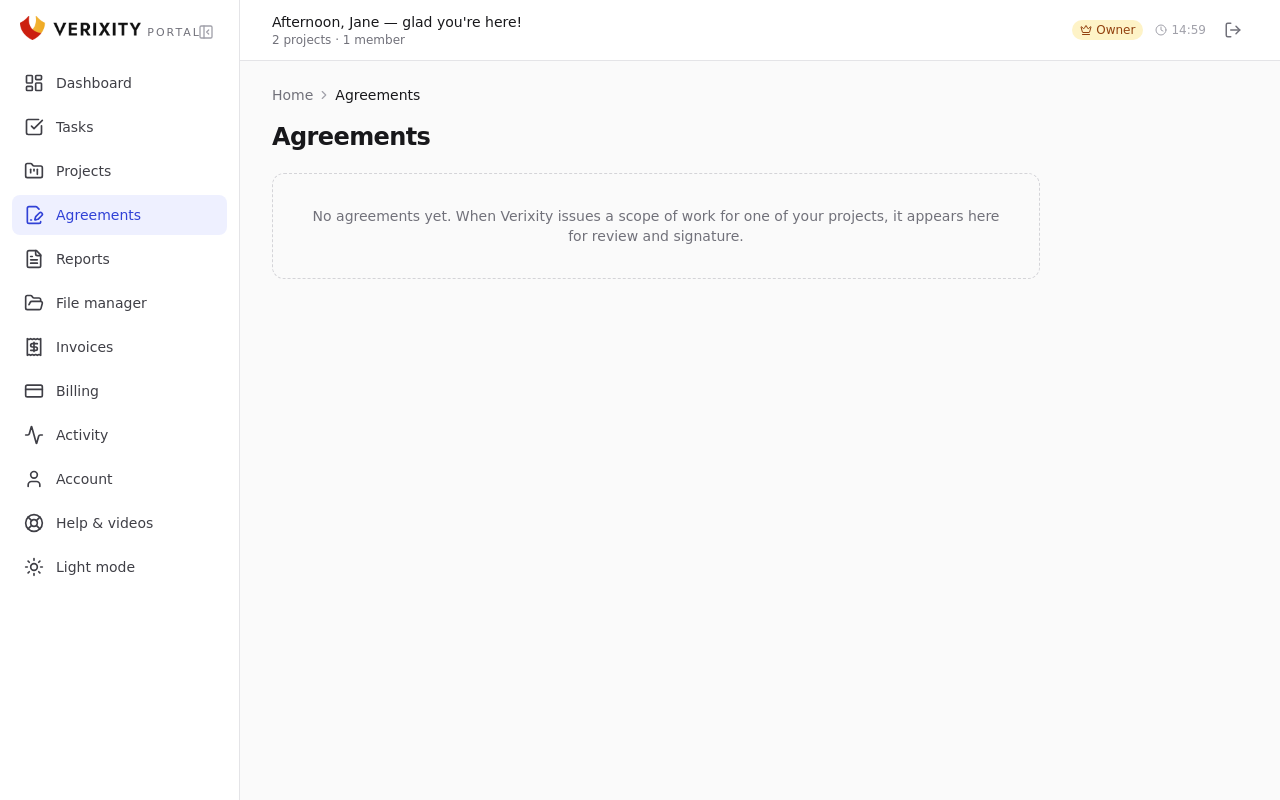
Review and e-sign your scope of work and plan agreements, or ask for changes.
Agreements holds your scopes of work and signed plans. Only account owners see it. One waiting for you is marked Awaiting your signature.
- Go to Agreements and click Review & sign.
- Read the details. You can also open the full Agreement PDF.
- Under Sign this agreement, type Your full name and draw Your signature.
- Tick the box confirming you can sign for your company, then click Sign & accept.
Not quite right? Click Request changes, tell us what to change and click Submit request. We'll send a new version to sign. Signed agreements show Signed & Active and stay here, along with the history of changes.
8.Invoices and payingAccount owners
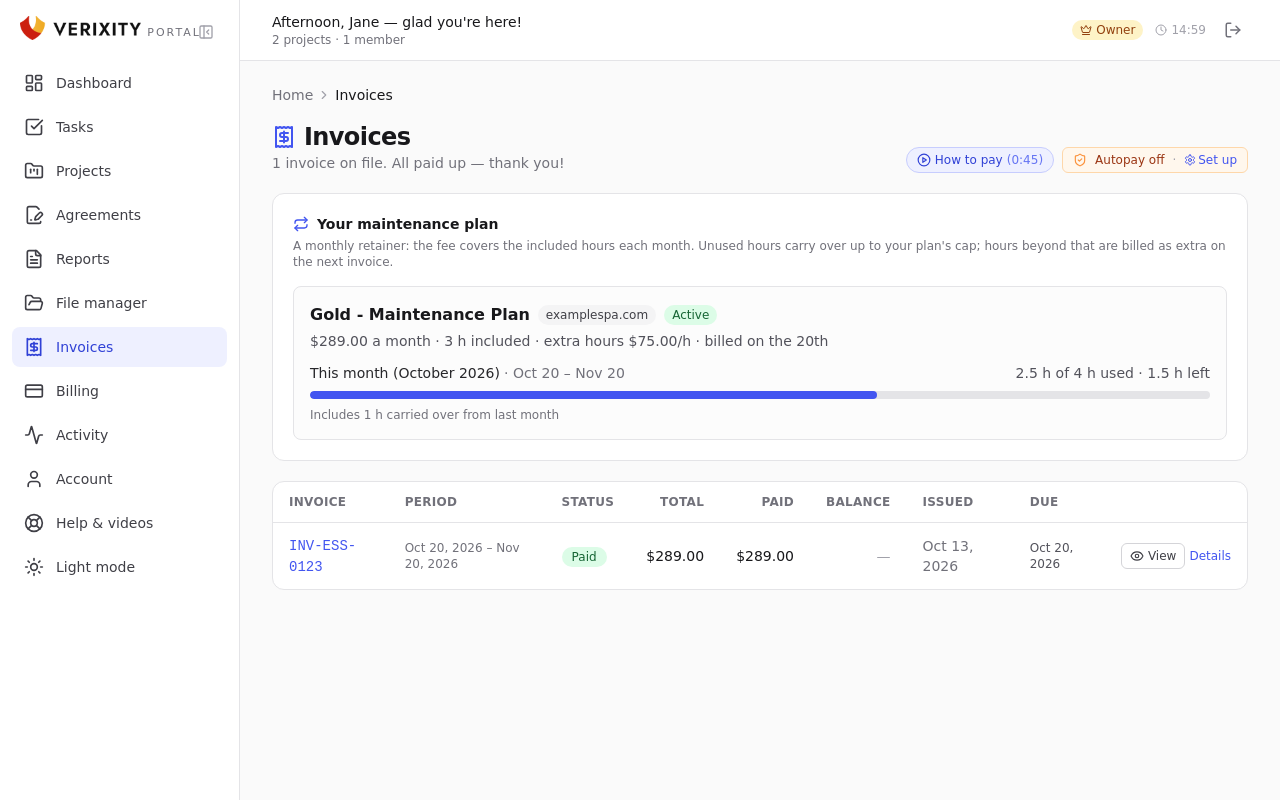
See your invoices and pay one by card or bank transfer.
Invoices lists every invoice with its status, total, what's paid and the balance. Click an invoice number, or Details, to see its lines and payments.
- Click the button in the invoice email, or go to Invoices and click Pay. The pay page opens in a new tab.
- Choose card or bank transfer and enter your details.
- Click Pay invoice. You'll get an email receipt when the payment goes through.
Paying by bank for the first time? Your bank may need verifying. Stripe sends a small deposit to your account, with a code starting with SM in its description. Enter that code on the verification page we email you. No money is taken until you verify.
If the pay page doesn't open, allow pop-ups for the portal and click Pay again.
9.Billing and autopayAccount owners
Save a card or bank account so invoices are paid automatically on their due date.
Billing shows your balance, your rate, this month's work and your invoices. It's also where you turn on autopay.
- Go to Billing and click Set up autopay.
- Enter your card or bank account.
- Tick the authorization box (I authorize Verixity …).
- Click Save method & authorize autopay.
Each invoice is then charged on its due date. We email you the day before, so you can pay another way first if you like. If a charge fails, we email you a link to pay. Use Change payment method or Cancel autopay on the same card at any time.

10.Your plan and hoursAccount owners
How your maintenance plan's hours work, monthly or annual, and how to choose next year's plan.
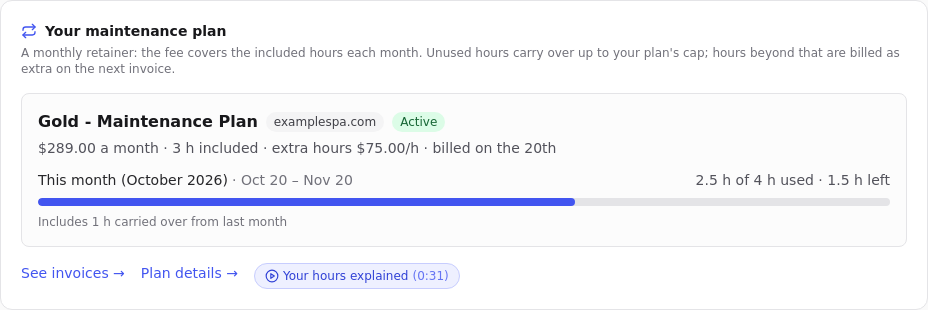
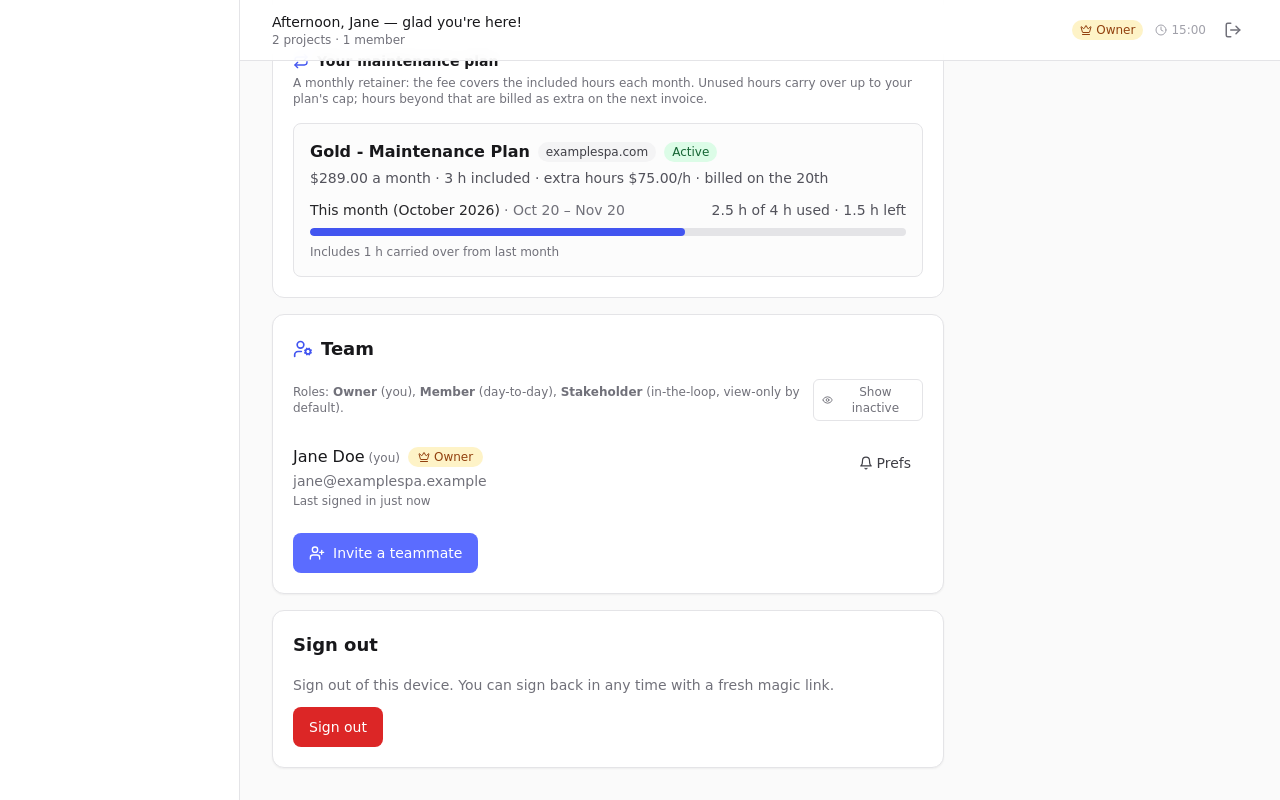
Your maintenance plan shows on your dashboard, Invoices and Account: what's included, the hours used and left, and any extra hours. On each request you also see the Time invested by Verixity.
A Monthly plan renews each month on your sign-up day. Unused hours carry over, up to your plan's limit. An annual plan runs 1 January to 31 December at a discount. Its hours are one bucket you can use in any month, and unused hours expire on 31 December. On both, hours beyond the plan are billed as extra.
- When it's time to choose, use the link in our email or the banner on your dashboard.
- Pick annual or Monthly for each website, then click Review and sign.
- Choose how to pay an annual plan, type your full name, tick the box and click Sign and confirm.
11.ActivityAccount owners
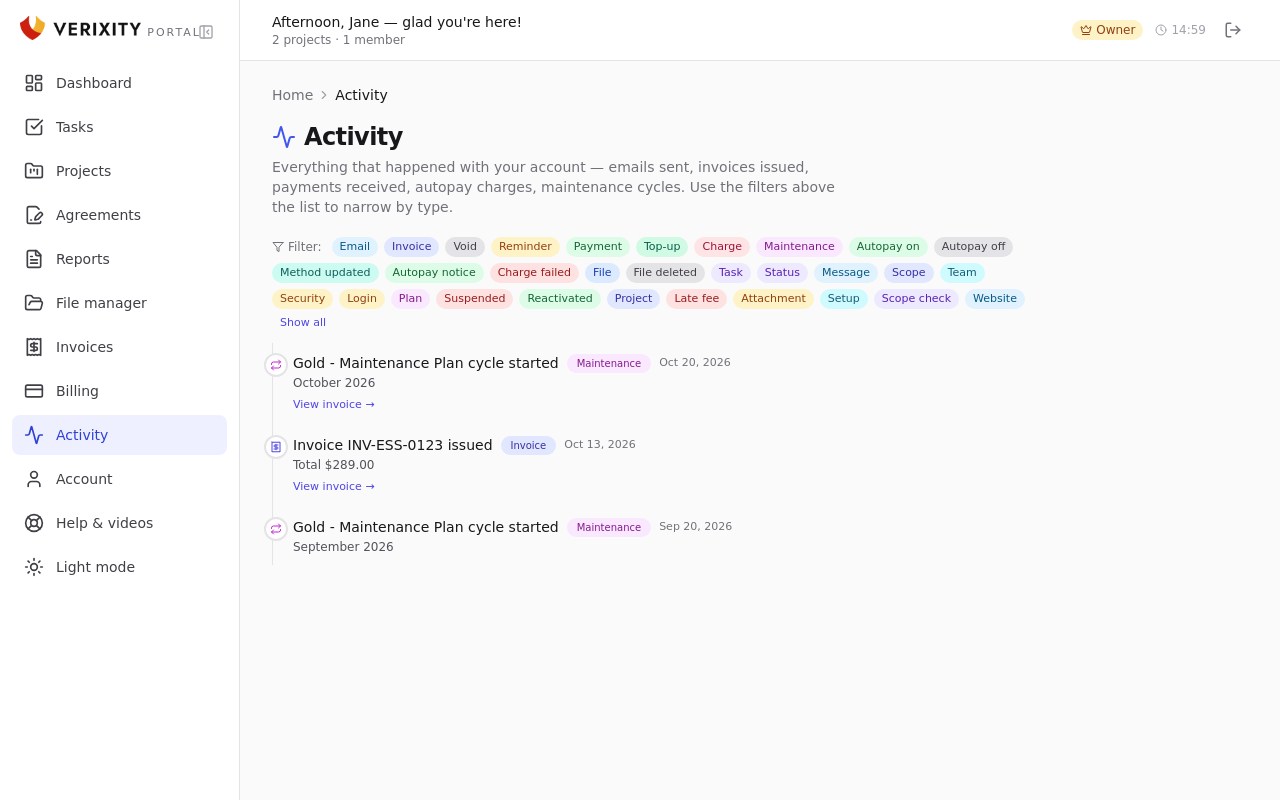
A timeline of everything that happened on your account: emails, invoices, payments and more.
Activity is a timeline of your account: emails we sent, invoices issued, payments received, autopay charges and maintenance cycles. Only account owners see it.
Use the filter buttons above the list, such as Invoice, Payment or Email, to show only what you're looking for. Click Show all to clear the filters.
Not sure whether an email or receipt was sent? Check here first.
12.Your account and team
Update your details and password, and invite your team.
In Account you can change your name under Your details and click Save changes. Under Password you can set or change a password. Sign-in links always work too. Click Sign out when you're done on a shared computer.
Account owners manage the team under Team. Everyone you invite sees the whole account, not just one project.
- Click Invite a teammate and enter their email.
- Choose a role: Owner (everything, including billing), Member (selected by default; works on requests) or Stakeholder (view only).
- Click Send invite. Their invitation link is valid for 14 days.
Click Prefs next to a person to choose what they can do and which emails they get. Use the ⋮ menu to Change to … another role or Disable access.
13.Getting help
Where to find these videos and guide, and how to reach the team.
Help & videos in the sidebar has short how-to videos and this guide. You can also reach it from Account. The videos are open to anyone, signed in or not, so you can share them with your team.
For anything else, the fastest way is a new request: go to Tasks and click New request. The whole team sees it and you can follow every reply. You can also email support@verixity.com.
Can't sign in? Email support@verixity.com from the address you use for the portal.